Product Listing Ads vs Google Shopping | What’s the Difference?
What Are Product Listing Ads (PLAs)? Product Listing Ads (PLAs), also called Google Shopping Ads, are advertisements that appear in response to user queries on Google search results. They usually appear at the top, the upper right, or the upper left side of the search engine results page (SERP) and are given prominence over organic [...]
The post Product Listing Ads vs Google Shopping | What’s the Difference? first appeared on Tekrati and is written by Sam Arnold
]]>Product Listing Ads vs Google Shopping | What’s the Difference?
What Are Product Listing Ads (PLAs)?
Product Listing Ads (PLAs), also called Google Shopping Ads, are advertisements that appear in response to user queries on Google search results.
They usually appear at the top, the upper right, or the upper left side of the search engine results page (SERP) and are given prominence over organic search results and text ads. They are also further highlighted with a high-quality feature image, a link to the product’s landing page, its price (including running offers and promotions), and the site owner’s information.
Because all the crucial information is captured within the PLAs themselves, the leads (when compared to regular search ads or text-based ads) are generally more qualified, as the users are given more than enough information to make a choice before clicking on the ad.
How PLAs Work
PLAs are cost-per-click ads. That means that you are only billed when users actually click on your ad and visit your landing page. As for setting up, the bulk of your work and management occur within a Google Merchant Center account (where you’ll have to upload all your product data) and a Google Ads account (where you’ll be able to manage your campaigns.)
Google decides when and where your PLAs appear based on several factors:
The Bid Amount
Just like Google’s other ad formats, the placement of your Shopping ads is based on real-time ad auctions. So, generally, the higher you are willing to bid, the more likely your ad will be placed. Note, you’ll need to use a Comparison Shopping Service (CSS) solution to bid on these auctions.
CSSs can be kind of tricky, but for now, the only thing you really need to know is that Google Shopping is a CSS (more on this later.)
Of course, if you want to learn more about CSSs anyway and how you can take advantage of the more advanced options out there, Fredrik Lindros, the CEO of the Nasdaq listed company, Speqta, talks about it in a recent interview, where he introduces their newest CSS solution, Bidbrain — notable for being an AI-powered bid optimization tool capable of increasing your sales at around +20-50% at the same or higher ROAS (Return on Ad Spend.)
The Ad Quality During Auction Time
Google gives all your products an independent product score that decides when and where they are placed. A higher quality score means your ad has been deemed relevant and is expected to convert more — translating to lower costs and better ad placement.
There are multiple factors that go into what kind of quality score your products are given. Most of these are fixable by optimizing your product feed — which is another thing that you can manage with external solutions like the aforementioned CSS solution, Bidbrain, which doubles as a product feed optimizer that should increase both the quality of your ads and their ROI.
The Context of the Search in Relation to Your Ad
Of course, there is no point in wasting prime ad space for ads that are irrelevant to the user’s query. Google avoids doing so by making use of the user’s location, the device the user is using, the time of the query, and multiple other factors to see which ads are the most relevant.
The Impact of Your Ad Extensions
Extensions that are deemed to have the potential to increase your click-through rate can greatly impact how often your PLAs appear on Google Shopping. Whether it be in the form of special offers, positive reviews, pathways to unique landing pages, etc.
Google Shopping
Google Shopping is a Comparison Shopping Agent (CSA), Engine (CSE), or Service (CSS) owned and managed by Google.
On this engine, users can search for the products that they are looking to buy and are provided with a select number of options from various merchants representing different outlets, brands, and businesses. The options presented are determined by the user’s query — possible because Google has a collection of tools capable of parsing through millions of products in real-time to find the ones that are the closest match to the user’s search terms.
How Google Shopping Works
At this point, the connection between Product Listing Ads and Google Shopping is probably a little clearer for you. But let’s dig in a little deeper before answering our main question for the day by moving on to just how Google Shopping works.
To begin with, Google Shopping is a homepage of Google (much like how Google Images is a homepage of Google.) Users can access it by clicking on the Shopping tab and they can use it to search for a product that they are interested in buying.
It’s important to understand now that Product Listing Ads are listed on Google Shopping as well as the “All” tab (which is, of course, the first search result tab). But, to make things a little clearer, we must first go over how PLAs are set up:
Setting Up a Product Listing Ad
Several building blocks must come together for a product listing ad to appear on Google Shopping:
Creating a Google Ads Account
Google Ads is Google’s online advertising platform wherein advertisers bid to display their advertisements, service offerings, product listings, etc. to web users across Google’s ad networks (i.e., Google Search, Google Shopping, the GDN, etc.) A Google Ads account is for the management of these advertisements, as such, it is required to set up PLAs.
Setting up a Google Ads account can be a bit of a hassle, and especially more so if you’re setting it up for PLAs. Google does now offer Smart Shopping — which is a simpler and automated way of getting your PLAs set up, but also a lot more restrictive (no insights are provided and control over which devices, networks, and locations your ad shows up is not possible.)
Basic Account Set Up Tips
- One way to improve your overall Google Shopping experience is to link your Google Ads account to Google Analytics. Doing so should help you make more informed marketing decisions as you will be able to see whether your ad spend is truly adding value to your business’s growth.
- You might want to set up Conversion Tracking as well. Conversion tracking will help you determine whether your ad clicks are actually converting — which is data that you absolutely need in order to find out which of your campaigns are the best-performing.
Creating a Merchant Center Account and Verifying Your Site Ownership.
Your Google Shopping campaigns cannot succeed without a fully optimized Merchant Center account as this account will be what acts as an online repository for your store by holding all the information for the products you sell — both online and in your brick-and-mortar stores.
Import Your Data Feed to Your Merchant Center
The Merchant Center hosts your Google Shopping Feed, a product data spreadsheet that organizes critical information about your products in a manner that Google can interpret. It is the main source of information Google will use to auto-generate your PLAs. And it’s also the data bank from which Google will determine whether your product is relevant to a shopping query.
Some of the basic fields available are product title, product image, and product category. The fields can be further customized to meet your specific target audience by inserting AI technology directly into your Google Ads account (like Bidbrain), which will enable you to create additional fields in your data feed beyond Google’s own provisions.
You need to ensure that your data quality meets Google standards, that your field columns are correctly labeled, that you have not violated character limits, and that all key attributes have been included. You can always refer to Google’s product data specification guidelines to format your product information and get it right. Google does offer tools that you can use to schedule regular updates for your feed. But, as mentioned previously, there are other ways of optimizing and keeping your feed updated with advanced, AI-powered programs (like the aforementioned Bidbrain), to ensure that you are maintaining a slight edge over your competitors.
Linking Your Google Ads Account to Your Google Merchant Center Account
Every campaign that you initiate relies on the product feed that is hosted in your merchant center. It is what Google will use to determine your product’s relevance to your target audience and how much to bill you. As such, it is important to have your Google Ads account linked to your Merchant Center account.
The Difference
Now that we’ve properly defined both of the items in question, we can finally tell you this: The difference is that Google Shopping is not an ad but rather a platform for consumers to search, browse, and compare products across brands, outlets, and retailers. Think of it as a ‘runway’ for ads (which are the models in this metaphor.)
That means that Product Listing Ads are a part of the Google Shopping platform (and thus, comparison is unnecessary.) Just remember that the two simply make up components of the larger Google Ads umbrella through which they are set up.
The post Product Listing Ads vs Google Shopping | What’s the Difference? first appeared on Tekrati and is written by Sam Arnold
]]>Why Are Your Google Shopping Ads Not Showing? — Here Is How to Fix It!
Table of Contents A lot of time and effort goes into the management and optimization of Google Shopping Ads. The competition is fierce. And, as I’m sure you can empathize with, it would be extremely frustrating to have to go through all that trouble only for your efforts to be rendered useless. Have you ever [...]
The post Why Are Your Google Shopping Ads Not Showing? — Here Is How to Fix It! first appeared on Tekrati and is written by Sam Arnold
]]>Why Are Your Google Shopping Ads Not Showing? — Here Is How to Fix It!
Also, in general, if the data that you provide does not match the product information of a certain product on your website or is, at any point, not truthful to the product’s specifications, then your Ad will be disapproved and Google will stop showing it on Shopping Ads and free listings.
Solution!
Luckily, Google has procedures in place to allow you to appeal for the approval of your disapproved Ads — especially if you have justifiable grounds and can prove that the Ad was disapproved erroneously.
But, even if the Ad was truly not compliant with Google’s policies, you are free to modify the Ad to meet the proper requirements and resubmit it for review whenever you want.
It might help to try out products like the aforementioned SaaS solution, Bidbrain (which doubles as an excellent product feed optimizer) that will allow you to optimize your feed — thus increasing your chances of getting it approved.
Your Bids Have Surpassed Your Daily Budget
Your budget can also play a very key role in whether or not your Shopping Ads are in proper order. After all, if your allocated daily budget is exhausted before the day’s end, you’ll be missing out on a bunch of potential impressions, clicks, and conversions.
You can check for this issue under All Campaigns. Your budget’s status will appear on the Status column (a.i. if your budget is too low, a red notification will appear to notify you that your Shopping Ads are not being shown as often because of a “Limited Budget”.)
The post Why Are Your Google Shopping Ads Not Showing? — Here Is How to Fix It! first appeared on Tekrati and is written by Sam Arnold
]]>
Google Adds VPN to 2TB Google One Subscription
Google has announced that it will include a VPN service to its 2TB Google One subscription, which you can grab for $9.99 a month. If you want a cheap VPN and trust Google, you can subscribe to Google One to get Google’s VPN service. Subscribe to Google One for $9.99 a month and get the [...]
The post Google Adds VPN to 2TB Google One Subscription first appeared on Tekrati and is written by Irene Hawkins
]]>Google Adds VPN to 2TB Google One Subscription
Google has announced that it will include a VPN service to its 2TB Google One subscription, which you can grab for $9.99 a month.
If you want a cheap VPN and trust Google, you can subscribe to Google One to get Google’s VPN service. Subscribe to Google One for $9.99 a month and get the VPN for free. The company also says this offer will reach iOS, Windows, and Mac in the next few months.
How Do I Get Google VPN?
The Verge says that you will need to get Google One’s 2TB plan at $9.99 a month or $99 a year. In a blog post, Google also said that the Google One app has a built-in VPN. With one tap, you can now browse safely on your mobile.
Google is bringing its own VPN to desktops and phones with $9.99 Google One subscription https://t.co/XEuipI9ulu pic.twitter.com/yHMyLqSUsG
— The Verge (@verge) October 29, 2020
With the VPN, you can also store or transfer sensitive files across Google One using public Wi-Fi networks. You can even buy stuff online on public networks without fear of getting hacked. Hackers prowling public Wi-Fi would not breach your personal information.
More Google VPN Services
Google adds that it’s releasing Pro Sessions by Google One. This service allows you to schedule one-on-one sessions with a Google expert. So, if you want to know more about VPNs and safe browsing, talk to an expert with Pro Sessions.
Moreover, if you share your 2TB Google One plan with your family, they can also use the VPN for free. You can share your subscription with five other people.
Where Can I Use Google’s VPN?
For now, only Android users in the US can use VPN by Google One. Just launch your Google One app and enable the VPN. Meanwhile, Pro Sessions will roll out to the US, UK, and Canada in the coming weeks.
If you want to try it, grab a Google One 2TB plan here.
The post Google Adds VPN to 2TB Google One Subscription first appeared on Tekrati and is written by Irene Hawkins
]]>
Google Updates Smart Home Devices with New Features
Google has released a new software update for smart home devices that could make them true command centers for your home. If you use a smart home device, you probably just ask it some questions or tell it to turn off the lights. However, tech companies are adding more functions to these machines. For example, [...]
The post Google Updates Smart Home Devices with New Features first appeared on Tekrati and is written by Irene Hawkins
]]>Google Updates Smart Home Devices with New Features
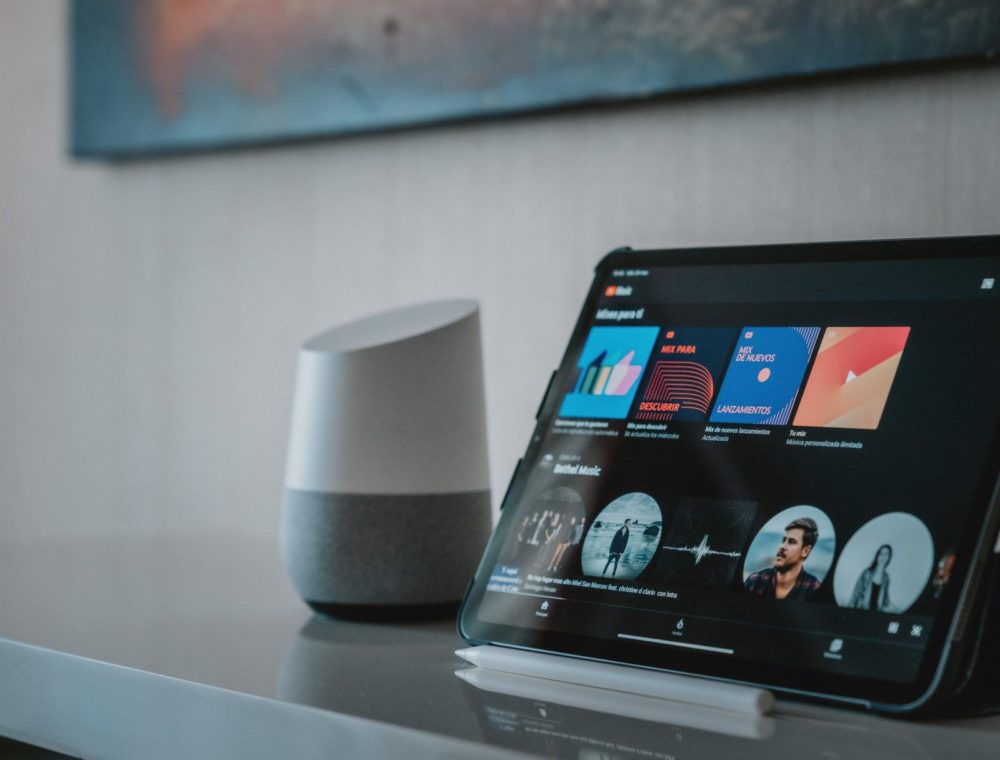
Google has released a new software update for smart home devices that could make them true command centers for your home.
If you use a smart home device, you probably just ask it some questions or tell it to turn off the lights. However, tech companies are adding more functions to these machines. For example, Google has released a software update for the Nest Hub and the Lenovo Smart Display. With these updates, your smart home device could become your home’s nerve center.
Google Smart Display: Your Day
Gizmodo reports that the software update contains new categories. These categories are Your Day, Home Control, Media, Communicate, and Discover. With Your Day, you can check the weather and set timers, among others. This section also gives you different content for different times of the day. Your Day becomes Your Morning, Your Afternoon, and Your Evening.
Google's Smart Displays are getting a massive (and free) upgrade https://t.co/kcyXcV0wHz pic.twitter.com/pbDtHZAwj9
— Gizmodo (@Gizmodo) October 19, 2020
Google Smart Display: Home Control
With Home Control, you can use your home device to manage all connected devices. Before, you had to use voice commands to turn on your smart display. Then, you had to go to the device to adjust your smart lights’ brightness. With Home Control, though, you can do that just by tapping your display.
Google Smart Display: Media
Google’s new update lets you manage the media playing across all connected devices. You can control music or listen to what’s playing throughout the house. With streaming support, you can even watch Netflix shows on your smart display. You can also watch YouTube, YouTube TV, and Disney+ shows on your device. Moreover, you can listen to podcasts on your smart display.
Smart displays with seven-inch and bigger screens will get the new Smart Display update today. The update will reach other devices in a week.
The post Google Updates Smart Home Devices with New Features first appeared on Tekrati and is written by Irene Hawkins
]]>
Get That Song Out of Your Head with Google’s “Hum to Search”
With Google’s new “hum to search” feature for Search, you can now hum into your phone to get that earworm out of your head. Shazam might need to watch its back now. Today, Google has launched a “hum to search” feature to Search. With this update, you can now hum, whistle, or sing a tune [...]
The post Get That Song Out of Your Head with Google’s “Hum to Search” first appeared on Tekrati and is written by Rob Sterling
]]>Get That Song Out of Your Head with Google’s “Hum to Search”
With Google’s new “hum to search” feature for Search, you can now hum into your phone to get that earworm out of your head.
Shazam might need to watch its back now. Today, Google has launched a “hum to search” feature to Search. With this update, you can now hum, whistle, or sing a tune to search for it on Google.
Google Search’s New Feature
The Verge says that Google’s new “hum to search” feature uses machine learning to identify your song. How does it work? Google says that you open Search on your mobile device and then tap the mic icon. After that, you can say, “What’s this song?” or click the “Search a song” button. Then, Google says you need to hum for 10-15 seconds.
Google’s new "hum to search" feature can figure out the song that’s stuck in your head https://t.co/BSwJeLutBv pic.twitter.com/yP4wVIxZOf
— The Verge (@verge) October 15, 2020
Google “Hum to Search”
Once you finish humming, Search’s algorithm should go to work right away to find song matches. Google also says you don’t need to have perfect pitch. You’ll get a list of likely options. After Google shows you the results, you can tap them to listen.
How Does Google’s “Hum to Search” Work?
Google says that its models transform your hums into a sequence that the AI could understand. This sequence represents the song’s melody. With the sequence, the AI could compare the melody to its library of songs.
Moreover, Google says it feeds the AI with various sounds, such as singing, whistling, or humming. They also use studio recordings as audio sources. So, even if you’re tone-deaf, you can use “hum to search.”
You can use Google’s new “hum to search” in English on iOS. For Android users, this new feature is available in over 20 languages. Google also plans to add more languages in the future.
The post Get That Song Out of Your Head with Google’s “Hum to Search” first appeared on Tekrati and is written by Rob Sterling
]]>
Google Launches Cross-App Security Alerts on iOS Devices
If you’re an iOS user, you’ll receive new security updates from Google today. Among these updates are new cross-app alerts for security issues with your Google account. If Google notices a potential security issue with your account, it will alert you right away. The warning works with all Google apps. Google Security Alerts The Verge [...]
The post Google Launches Cross-App Security Alerts on iOS Devices first appeared on Tekrati and is written by Irene Hawkins
]]>Google Launches Cross-App Security Alerts on iOS Devices
If you’re an iOS user, you’ll receive new security updates from Google today. Among these updates are new cross-app alerts for security issues with your Google account. If Google notices a potential security issue with your account, it will alert you right away. The warning works with all Google apps.
Google Security Alerts
The Verge reports that Google will release this update on iOS first before moving to other platforms. In a blog post, Google also said it plans to expand the alert “more broadly” in 2021. So, if you see a warning in whatever Google app you’re using, you don’t need to check your email or phone. Google adds that hackers can’t spoof these alerts.
Google is adding cross-app account security alerts on iOS https://t.co/2hvcm38IFd pic.twitter.com/ijD3taefj4
— The Verge (@verge) October 8, 2020
Google Assistant
Moreover, Google says it’s adding a guest mode to Google Assistant. If you use guest mode, Google Assistant won’t save any requests to access your Google account. It’s simple to turn on, too. Just say “Hey Google, turn on Guest mode” to your phone to activate it.
If you have a Nest smart speaker or display, expect this new mode in the coming weeks.
Meanwhile, you can now simplify checking your Google account’s security and privacy settings. Searching for phrases like “Is my Google account secure?” should pull up your account settings.
Google Safety Center
Finally, Google said it plans to update the Safety Center website. The website contains information on privacy and safety tools in Google products. With the update, the website can tell you information on 13 Google products. These products include Gmail, Chrome, YouTube, Android, and Pixel. Google also plans to add more products in the future.
If you’re in the US, you can access the new site now. Google plans to put up the site globally soon.
The post Google Launches Cross-App Security Alerts on iOS Devices first appeared on Tekrati and is written by Irene Hawkins
]]>
Google to Transform G Suite to Google Workspace
While Microsoft Office continues to reign over workplace software, Google prepares its challenge. The company plans to merge its G Suite apps into a new brand called Google Workspace. If you want to subscribe, Google also plans to introduce a new tier called “Business Plus.” Google Workspace The Verge reports that Google will combine Gmail, [...]
The post Google to Transform G Suite to Google Workspace first appeared on Tekrati and is written by Irene Hawkins
]]>Google to Transform G Suite to Google Workspace
While Microsoft Office continues to reign over workplace software, Google prepares its challenge. The company plans to merge its G Suite apps into a new brand called Google Workspace. If you want to subscribe, Google also plans to introduce a new tier called “Business Plus.”
Google Workspace
The Verge reports that Google will combine Gmail, Docs, Meet, Sheets, and Calendar under Workspace. Along with the rebrand, Google will also equip Workspace with new features that integrate all G Suite apps.
For example, if you open a Chat window, you can also open a new document for everybody without opening a new tab. In Google Docs, you can also start a video call with everyone actively working on a document. Similarly, you also don’t need to open a new window or tab.
Google vs. Microsoft
With the Fluid feature, Microsoft has tried integrating Office apps into one another before. Google’s plans to do the same thing for G Suite hints at a serious challenge to Microsoft Office.
Before, Google had already merged Google Meet with Gmail. The company plans to do the same things with the rest of the G Suite apps. Initially, you can see some small signs of integration. For example, you can already pull up document previews of documents inside the document you’re working on starting today.
When Can I Get the Full Workspace Experience?
Google says you can use the rest of Google Workspace’s new features, such as the new video call mode, “in the coming weeks,” or “coming months.” If you’re a non-business subscriber, you’ll have to wait longer.
The post Google to Transform G Suite to Google Workspace first appeared on Tekrati and is written by Irene Hawkins
]]>
Epic Games Sues After Google Pulls Fortnite From Play Store
After suing Apple for pulling Fortnite from the App Store, Epic Games is doing the same to Google. Google had also dropped Fortnite from the Google Play Store, though gamers can still buy it on Android and the Samsung Galaxy Store. However, Epic Games put in a new wrinkle in its Google lawsuit. In its [...]
The post Epic Games Sues After Google Pulls Fortnite From Play Store first appeared on Tekrati and is written by Irene Hawkins
]]>Epic Games Sues After Google Pulls Fortnite From Play Store
After suing Apple for pulling Fortnite from the App Store, Epic Games is doing the same to Google. Google had also dropped Fortnite from the Google Play Store, though gamers can still buy it on Android and the Samsung Galaxy Store.
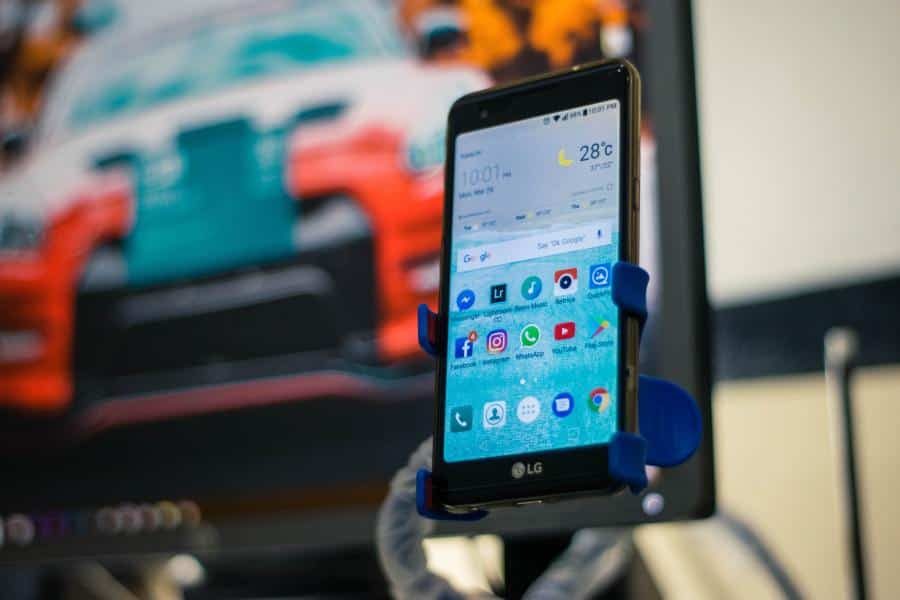
However, Epic Games put in a new wrinkle in its Google lawsuit. In its suit, Epic accuses Google of forcing OnePlus to break a deal to pre-install Fortnite on their phones. Moreover, Epic also charges Google of forcing LG to do the same thing with their phones.
Google vs. Epic Games: OnePlus’ Fortnite Launcher
According to The Verge, OnePlus and Epic would have made a special Fortnite launcher that would install the game on OnePlus phones. When Google found out, it pushed OnePlus to abandon the deal. Google was worried that the launcher could bypass the Play Store.
This deal would have made the Fortnite launcher available worldwide, according to Epic. However, Google demanded OnePlus to break off the deal. Only OnePlus phones sold in India carry the launcher.
Google vs. Epic Games: Fortnite on LG Phones
Epic Games also accuses Google of doing the same thing with LG. Both Epic Games and LG had made a deal to install the Fortnite launcher on LG phones. However, Google stepped in again to demand LG break the deal.
Google said LG had to stop the deal because they had signed a contract with Google. This contract said LG should not allow “side downloading” on the Google Play Store this year.
Google & Apple vs. Epic Games
Apple pulled Fortnite from the App Store because Epic would have allowed gamers to pay for V-bucks directly to Epic Games. These lawsuits will force Google and Apple to deal with their antitrust issues.
The post Epic Games Sues After Google Pulls Fortnite From Play Store first appeared on Tekrati and is written by Irene Hawkins
]]>
Google Is Now Asking for 30% of Play Store Revenue
Despite seeing Apple get hit for its 30% App Store tax, Google still wants to follow the tech giant’s footsteps. Google has explained its billing system for paid apps on the Play Store. The Google Tax In a blog post, Google says developers with apps on the Play Store have until September 30, 2021, to [...]
The post Google Is Now Asking for 30% of Play Store Revenue first appeared on Tekrati and is written by Sam Arnold
]]>Google Is Now Asking for 30% of Play Store Revenue
Despite seeing Apple get hit for its 30% App Store tax, Google still wants to follow the tech giant’s footsteps. Google has explained its billing system for paid apps on the Play Store.
The Google Tax
In a blog post, Google says developers with apps on the Play Store have until September 30, 2021, to comply with its billing system. Gizmodo adds that this deadline means developers have one year left to receive direct payments from users before they have to pay 30% to Google. Moreover, Gizmodo says the Google tax might roll out at the same time as Android 12.
Google takes an Apple approach to Android apps, will require 30% cut of Play Store revenue https://t.co/IOr8EGmPbQ pic.twitter.com/NaAVBBtL4f
— Gizmodo (@Gizmodo) September 29, 2020
Who Would Pay the Tax?
In the same report, Gizmodo says that the one-year grace period applies to businesses that had to go fully online because COVID-19 shut down their physical stores. Google also plans to support developers who want to get their apps on multiple stores and multiple platforms.
If your app already runs Google’s billing system, the company now requires you to use it for new apps or downloads. You should also use the system to charge users for in-app purchases. However, apps used for money transfers, like Venmo, are exempted. These new rules take effect on January 20, 2021.
Google and the Apple Tax
Despite the billing system, Google says that it still wants to support Android’s open API platform. For example, users should freely choose developers for their “default messaging, keyboard, phone dialer, or other apps.”
You also don’t need to upload apps to the Play Store if you want them on Android. For example, the Android version of Fortnite is not on the Play Store, but you can get it from Epic Games’ website or Samsung’s Galaxy App Store.
The post Google Is Now Asking for 30% of Play Store Revenue first appeared on Tekrati and is written by Sam Arnold
]]>
Google Assistant Now Helps You Do Self-Care
Working from home during COVID-19 causes a lot more stress than usual. Living under a pandemic means self-care is now more critical than ever. So, Google has updated Assistant to help you take time for self-care during the day. Google Assistant and Self-Care The Verge reports that Google introduces a new Workday routine to Assistant. [...]
The post Google Assistant Now Helps You Do Self-Care first appeared on Tekrati and is written by Irene Hawkins
]]>Google Assistant Now Helps You Do Self-Care
Working from home during COVID-19 causes a lot more stress than usual. Living under a pandemic means self-care is now more critical than ever. So, Google has updated Assistant to help you take time for self-care during the day.
Google Assistant and Self-Care
The Verge reports that Google introduces a new Workday routine to Assistant. With the new routine, Assistant can now remind you, throughout the day, to set some moments aside for self-care. Aside from improving your work, Assistant also helps you stay healthy.
Google Assistant’s new Workday routine can bug you to take care of yourself https://t.co/oT9U8sjLcg pic.twitter.com/p5d5BGpmHf
— The Verge (@verge) September 27, 2020
How Google Assistant’s Self-Care Routine Works
COVID-19 has drastically changed our habits. Staying at home all the time has made us forget to take care of ourselves. So, Google Assistant pings you from time to time during the day to do small things for yourself. These actions could include getting a glass of water or taking a walk around the house. Before your workday ends, Google Assistant also tells you to wrap your tasks up.
You can control what the alert says and what times they ring.
When Can I Use Google Assistant’s Self-Care Routine?
If you have the Google Home app on iOS or Android, you can use the self-care routine this week. Just go to Home’s routines menu to enable the mode.
Google is also updating Assistant’s Gentle Sleep and Wake feature to embrace more smart light bulbs. This feature turns these bulbs on and off, depending on your set times. Earlier, Google limited the feature only to Philips Hue bulbs. Now, this feature should work with all bulbs that are compatible with Google Assistant.
The post Google Assistant Now Helps You Do Self-Care first appeared on Tekrati and is written by Irene Hawkins
]]>